 Annoteer
Guide · PowerPoint
How to mark up PowerPoint slides together in a Teams meeting
Deck reviews tend to produce feedback like “slide 7, the second box, can we make that clearer?” typed into chat and pieced together afterwards. Marking up the slide itself, with everyone in the meeting drawing at once, skips that translation step.
What Teams already gives you
Sharing a deck with PowerPoint Live lets the presenter point and draw while presenting, and lets attendees move through the slides privately. If what you need is to edit the slides together, co-authoring the file in PowerPoint is the right tool.
What neither is built for is a review: several people marking up the same slide at the same time, and the deck coming out of the meeting with those marks on it.
Mark up the slides together with Annoteer
- In a Teams meeting, select Apps (or +) and add Annoteer.
- Choose the
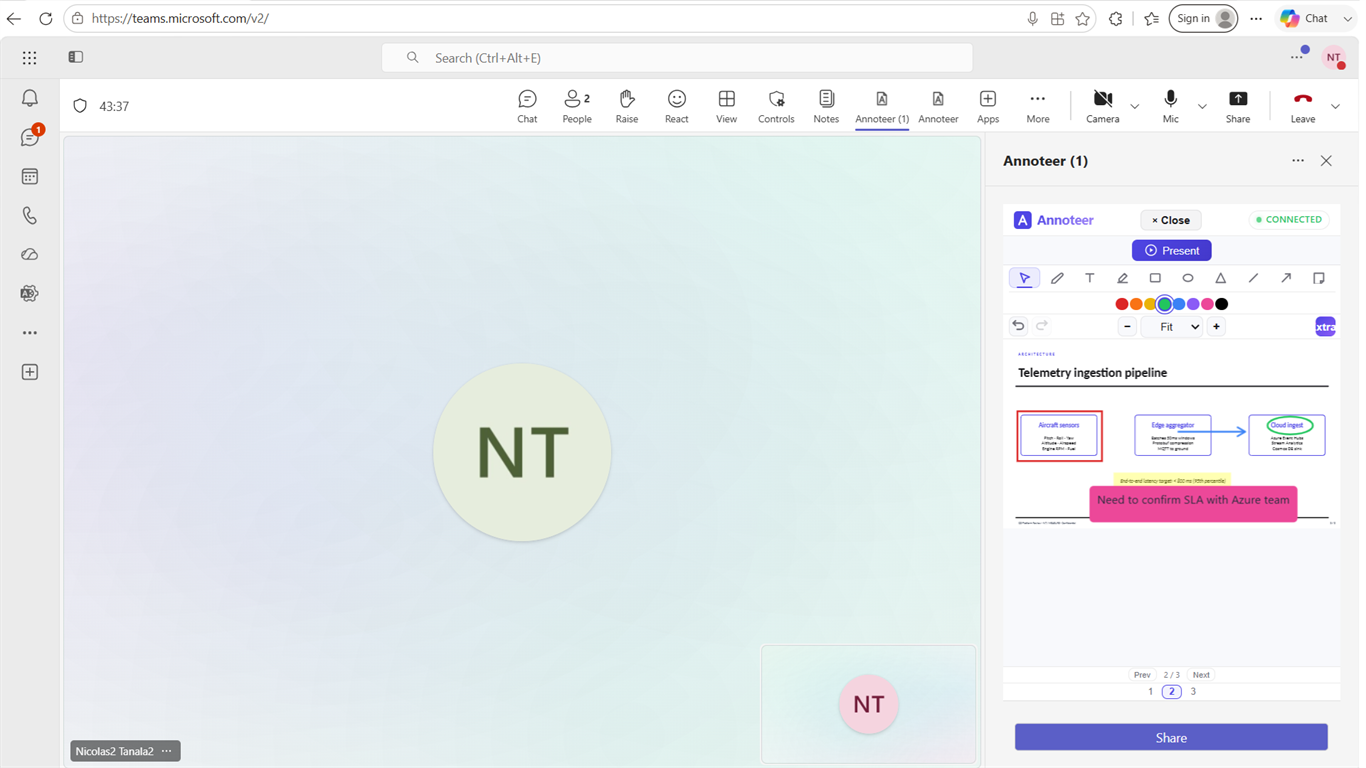
.pptxfile. Annoteer converts it to a page-per-slide preview for annotation; the original file is not changed. - Everyone draws on the slide at once: boxes, ellipses, arrows, lines, highlights, freehand, text and sticky notes. Each mark belongs to the slide it was drawn on.
- Press Present to lead: participants who follow you move through the deck with you, and anyone can step away to look at another slide.
- Download the deck as a PDF with all the annotations on it, ready to hand to whoever makes the changes.
Pull the content out of the deck
A roadmap or status deck often has a table or list someone needs elsewhere. The Extract button turns the open deck into Markdown, JSON, CSV or plain text without leaving the meeting.
Try it on your next review
Every organisation starts with a 14-day trial with no credit card. Add Annoteer from Microsoft Marketplace, then open it from the Apps button in your next Teams meeting.
Related guides
- How to annotate a PDF together in a Teams meetingEveryone marks up the same PDF at once, and the marks stay on the page.
- Collaborative document review in Microsoft TeamsHow to run a review meeting where the document, not the screen share, is the meeting.
- Teams screen-share annotation vs. annotating the documentWhat Teams' built-in annotation does well, and where it stops.